Happy New Year 2026 AI Photo Editing Prompt
Introduction
Friends, today I will tell all of you how to do this type of Happy New Year 2026 AI photo Editing Prompt. I will give you three prompts. One for boys, one for girls, and one for couples. So if you also want to edit photos like this, then watch this video till the end. So let’s start.
Happy New Year Ai Photo Prompt
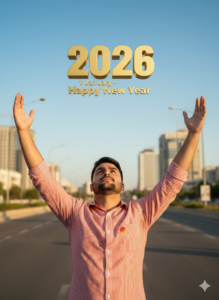
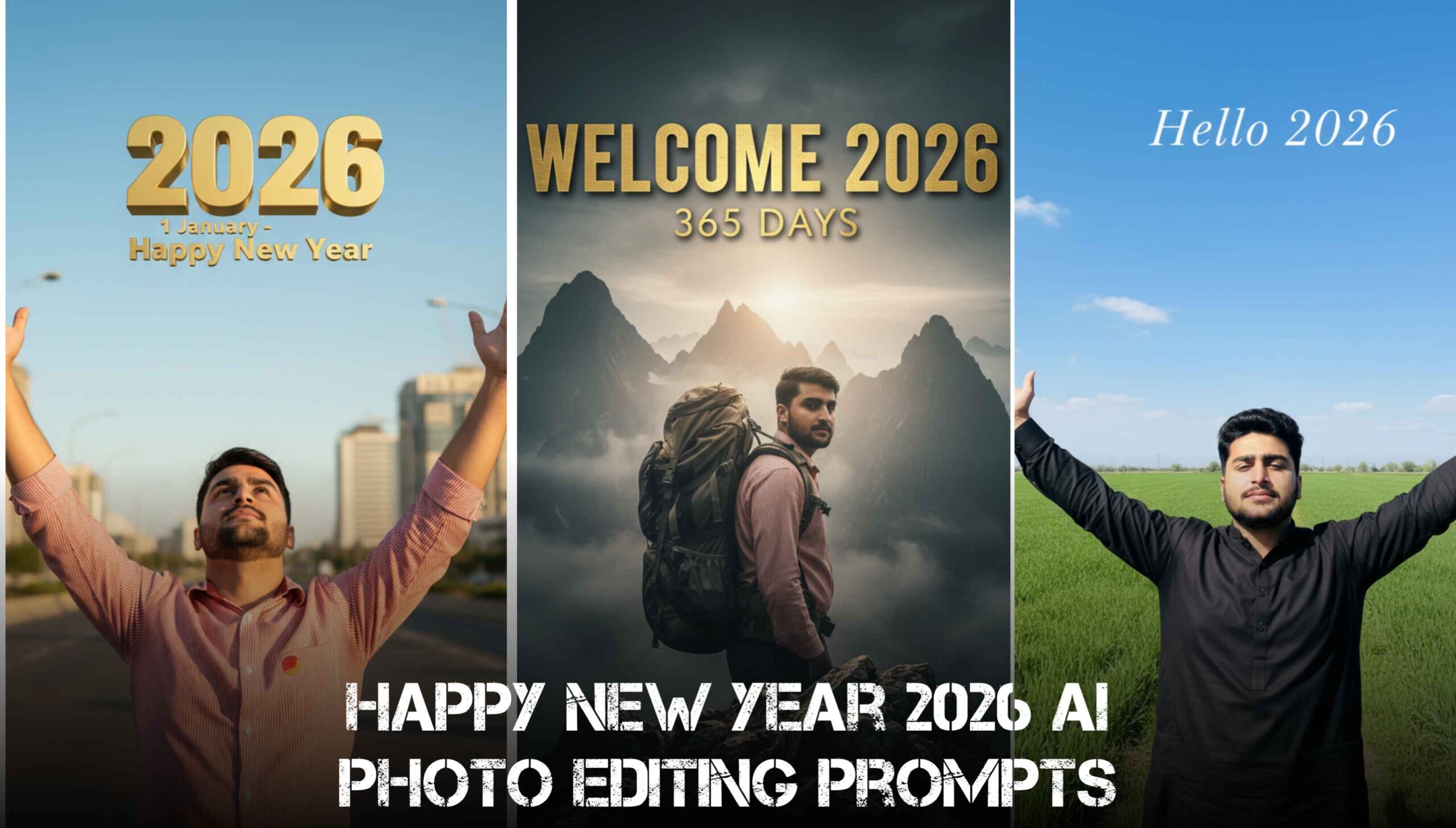
Use my uploaded photo. Keep the person exactly same. Change background to an empty city road in daylight. Adjust pose so arms are raised naturally. Add clean blue sky. Add realistic golden text above head saying “2026” and below it “1 January – Happy New Year”. Cinematic lighting, realistic shadows.
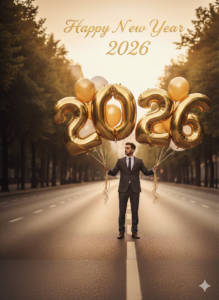
Edit my uploaded photo. Keep face and body exactly same. Add gold and white balloons in my hand shaped as “2026”. City road background with trees. Warm evening sunlight. Add text “Happy New Year 2026” in elegant gold font.
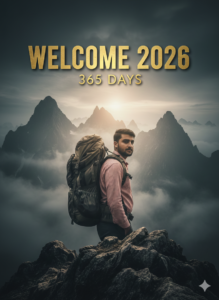
Use my photo. Keep face and clothes same. Change background to a foggy mountain peak. Add a travel backpack on shoulders naturally. Add bold text behind me “WELCOME 2026” and smaller text “365 DAYS”. Cinematic dramatic look.
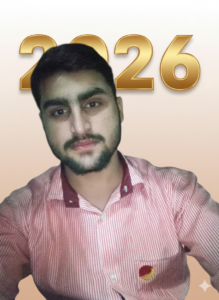
Edit my photo. Keep subject same. Replace background with clean light gradient. Add large bold typography “2026” behind me. Professional poster look. Sharp focus, soft shadows.
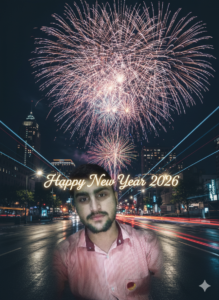
Use my uploaded photo. Keep face exactly same. Change background to night street. Add colorful fireworks in sky. Road reflections. Add glowing text “Happy New Year 2026”. Ultra realistic night lighting.
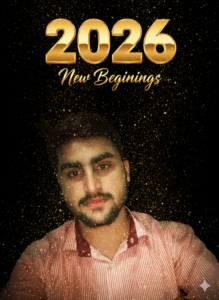
Edit my photo. Keep original person unchanged. Add black background with golden sparkles and light particles. Add premium gold text “2026 New Beginnings”. Cinematic luxury mood.
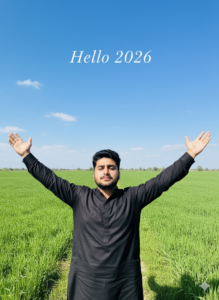
Use my photo. Keep face and body same. Replace background with open green field and blue sky. Arms open pose. Add soft white text “Hello 2026”. Natural daylight.
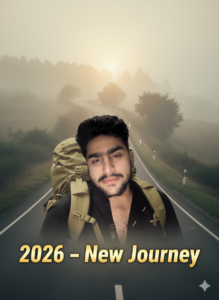
Edit my uploaded photo. Keep subject unchanged. Add road travel background with light fog. Add backpack and travel vibe. Text “2026 – New Journey”. Cinematic depth.
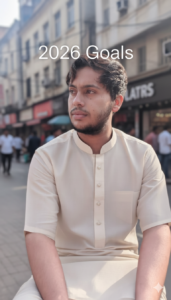
Use my photo. Keep face same. Change background to urban street lifestyle scene. Slight motion blur background. Add minimal text “2026 Goals”. Realistic street photography style.
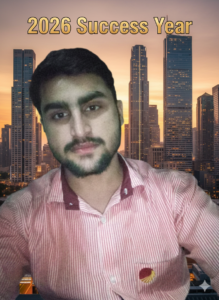
Edit my photo. Keep original identity same. Add modern city skyline background. Clean professional tone. Add bold text “2026 Success Year”. High-end cinematic lighting.
Download the Required Application
So first of all, all of you need to download this application from the Play Store. You can also use its website, but if you use the application, it will be much better. Go to the Google Play Store and download it. If you are not logged in, then log in.
Create Image Option Selection
After login, you will see four options. From there you have to select Create Image and click on it.
Upload Your Photo
Now look below, you will get a plus icon. Click on the plus icon and select the gallery option. From the gallery, select one of your photos. The photo should be a half photo in which your face is completely clear. Select that type of photo and click on done. Click on done one more time and your photo will start uploading.
Must Click: Dhurandhar Movie Akshaye Khanna Ai Photo Editing Prompt
Using Happy New Year 2026 AI Photo Editing Prompts
Now I will show you the prompts. I have already written all the prompts. I have a total of eight prompts. You will get these prompts on my Telegram, and the link is in the description box. From there, copy the first prompt and paste it here.
Generate Your AI Photo
Now everything is ready. Look below and you will see a black arrow option. Click on it and your photo will be sent to Google Gemini AI. Your photo will start generating. The photo generates very fast, but you should use a place where your internet is a little fast.
Check Face Matching and Quality
Now you can see your photo below. 2026, 365 Day Welcome. You should check the face in the photo. The face will be exactly the same. That’s why it is important to select a photo where your face is completely clear, so the AI generates a very good photo.
Download the Final Photo
Below, you will see the save option. Save the photo. When you preview it inside the app, the quality may look low, but after downloading, the quality will be very best. The quality will be the same as your original photo. Click on open, and the photo will be downloaded. You can see how HD your photo is.
How to Create Couple AI Photos for New Year 2026
Now I will tell you how to make a Happy New Year 2026 Couple photo editing prompt There is a couple prompt at number five. It is written “two people.” Copy this prompt. Now you need one girl’s photo and one boy’s photo. Click on the plus icon, go to the gallery, and select both photos. Click on done.
Must Click: Couple photo editing prompt
Generate Couple AI Image
After clicking done, you will see both photos uploaded. Paste the couple prompt and follow the same process. Click on the black arrow and wait for a few seconds. Your couple photo will be generated. You can match the faces and see that everything looks best.
Save and View Couple Photo Quality
Now click on the save option. The photo will be saved in your gallery. When you open it, you will notice how best the quality is.
Conclusion
So that’s all for this article. I hope you liked it. If you liked it, then like the post and subscribe to the channel.